Lonsdor released BMW G series BDC2 and BDC3 key programming function (add key only).
.
Here we will show how to add a smart key to G series BDC02 system.
Model example: 2019 BMW 5 series BDC2
Tools required:
- Londsor K518 Pro/Pro FCV/K518ISE
- Lonsdor BMW G function license activation
- Lonsdor BMW BDC2 adapter and BDC2 adapter cable
- 12V power supply
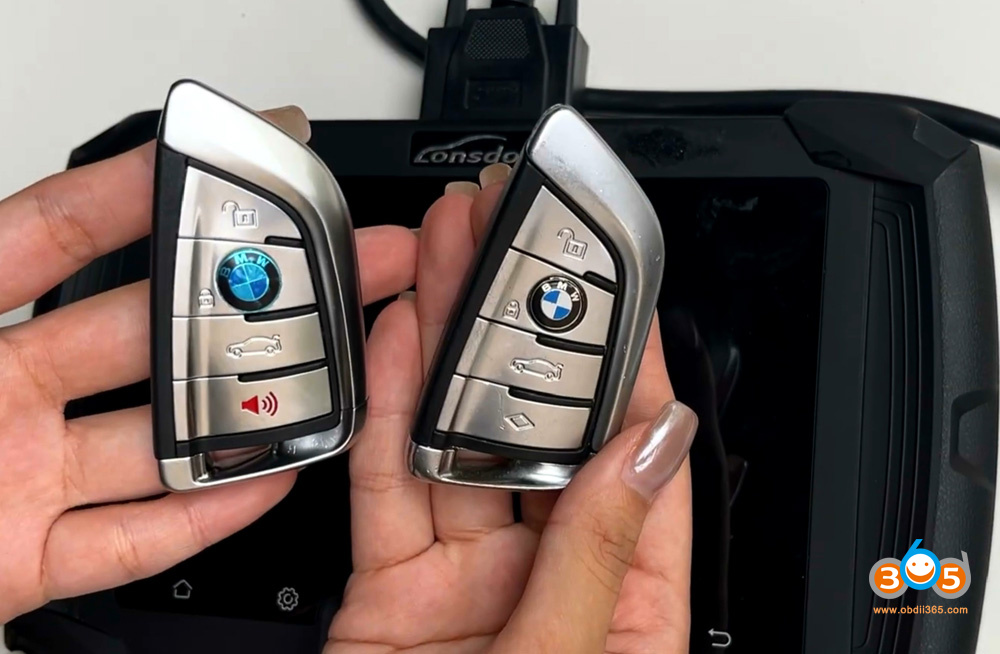
- Original car key or Londsor BMW G key to be programmed
Procedure:
Step 1: Read key data
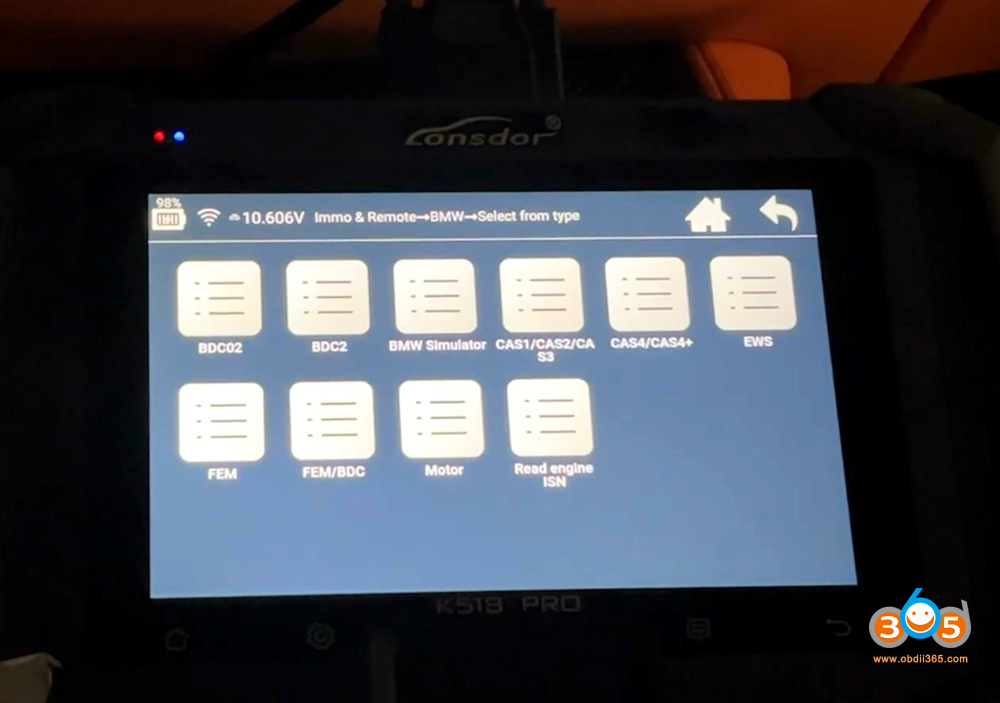
Go to IMMO & Remote- BMW- Select from type- BDC02- Program smart key
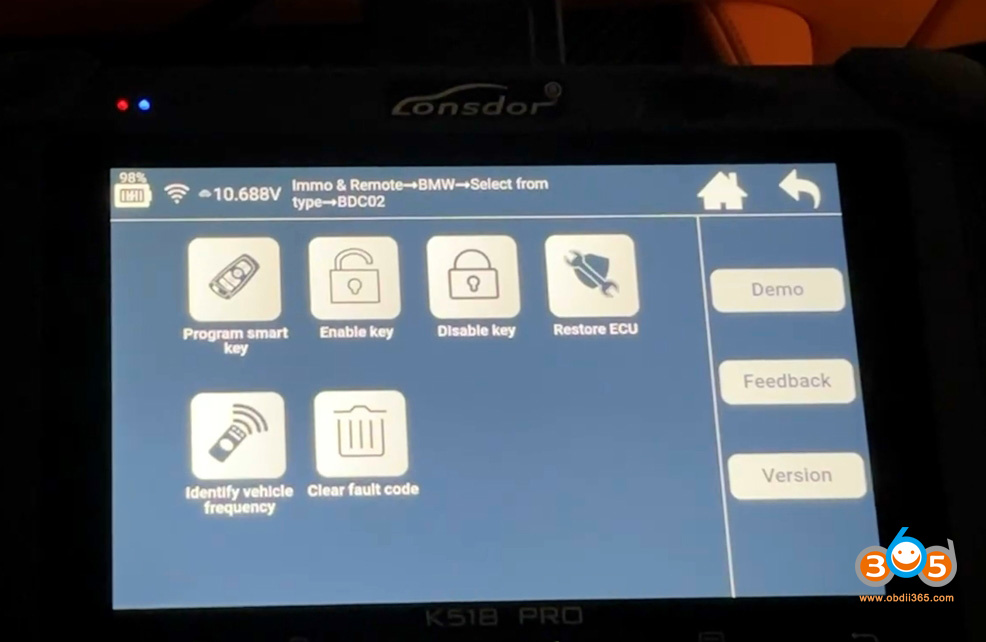
Select Read key data.
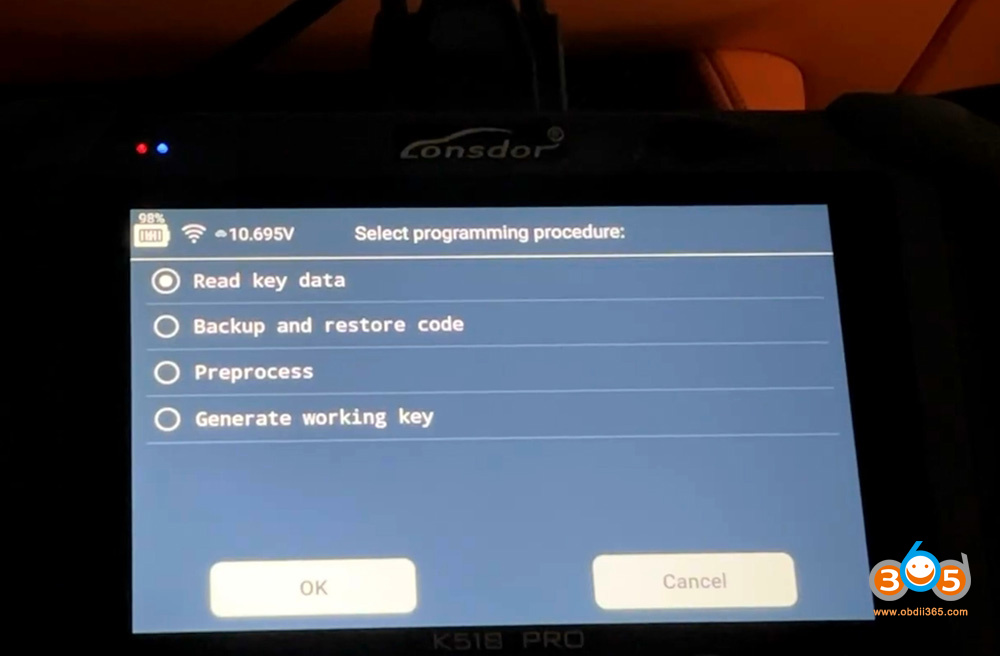
VIN code has been identified.
Lonsdor says the current SWFL version is supported.
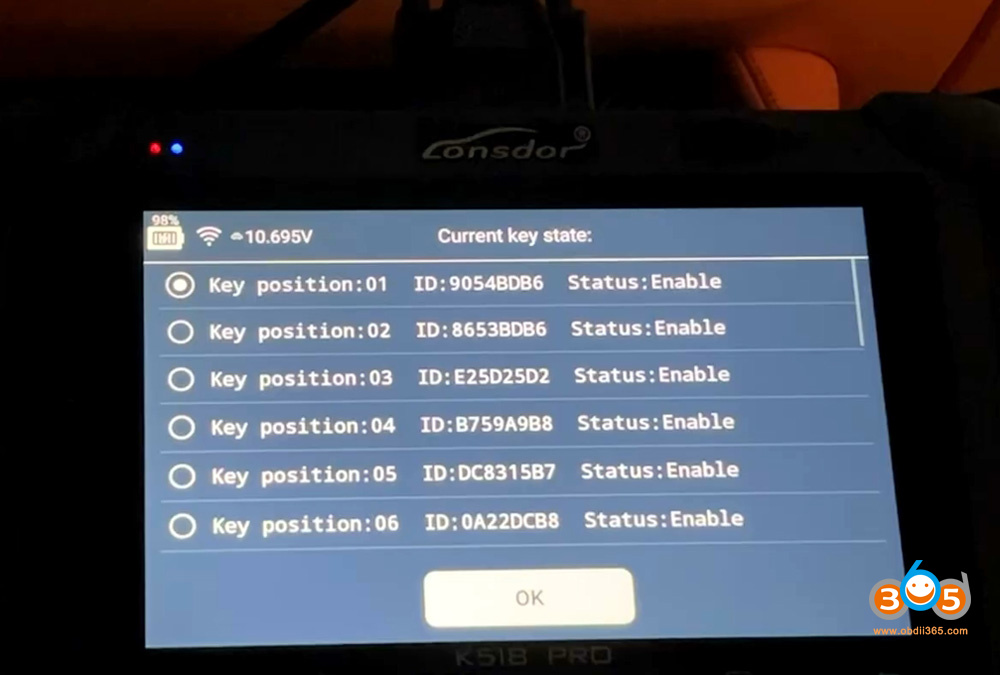
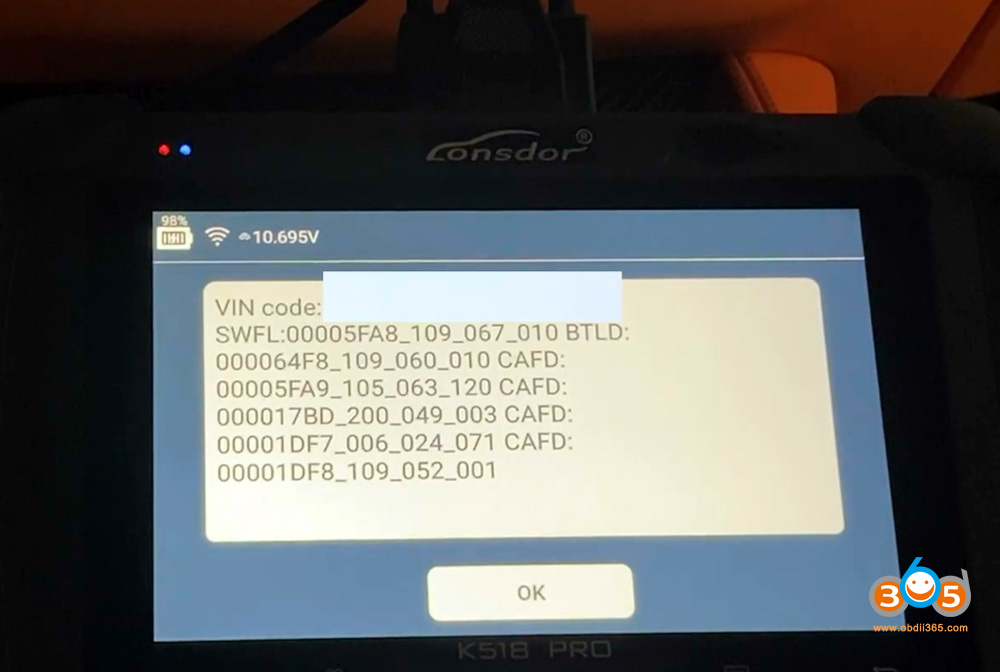
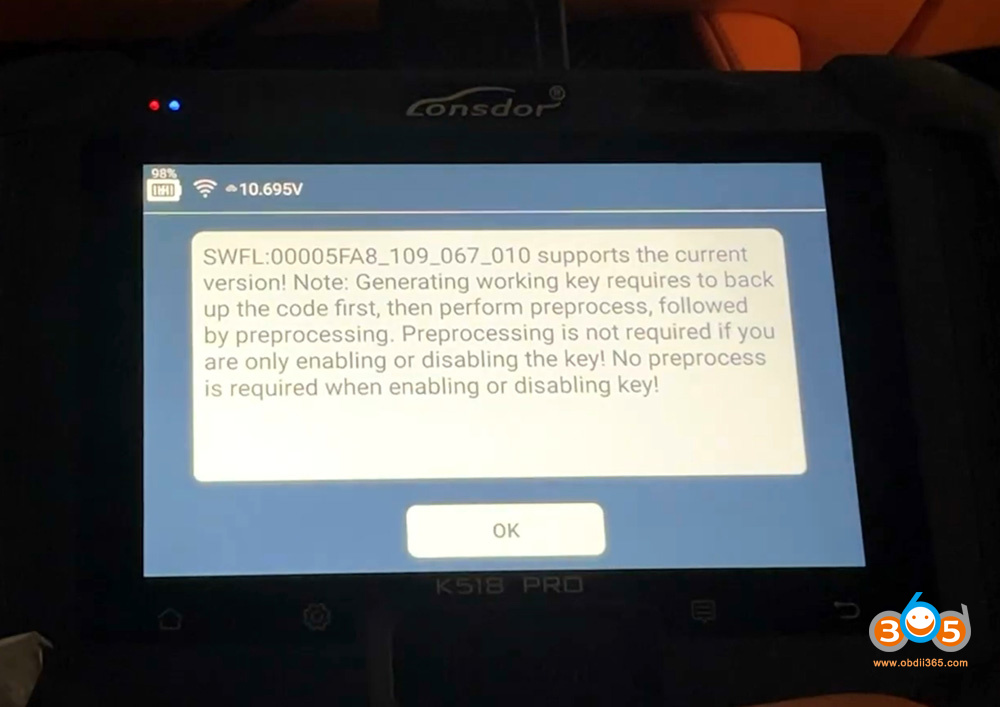
We continue back up coding first.
NOTE: Preprocessing is not required if you only enable ot disable key.
Step 2: Back up coding
Select Backup and restore code function- Backup code.
Back up data successfully.
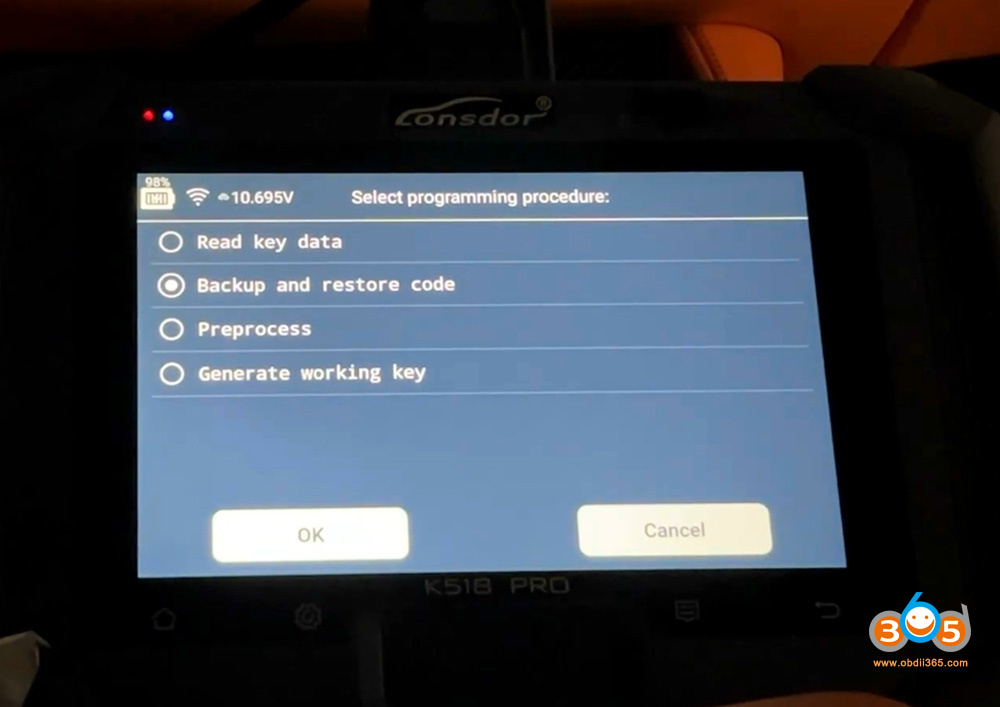
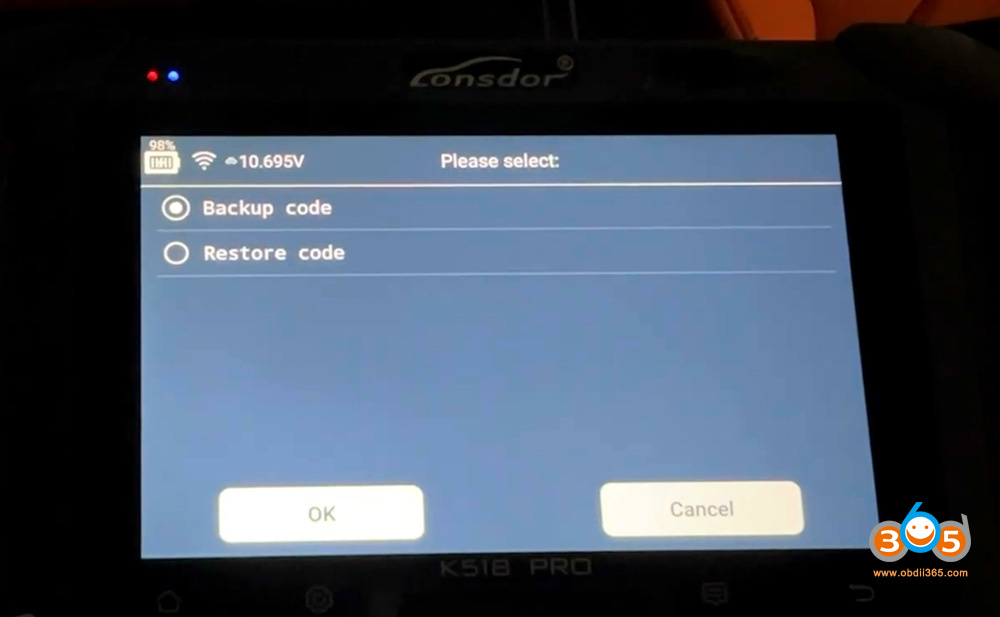
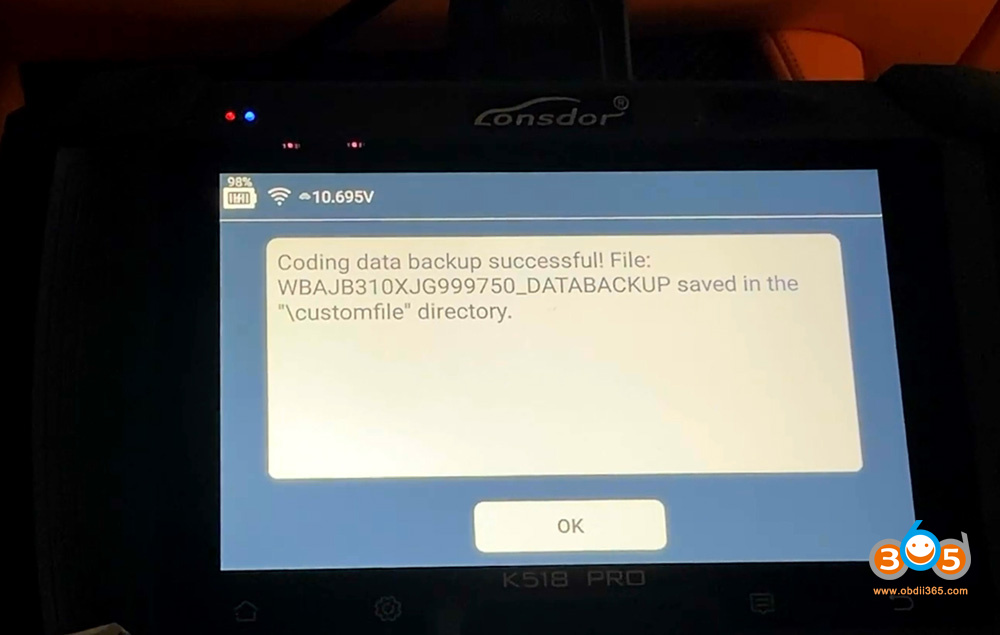
Step 3: Preprocess BDC2
This function requires removing the BDC02 immobilizer module from vehicle.
Then connect the Lonsdor BDC2 interface board with the BDC2 module via Lonsdor BDC2 adapter cable.
Don’t forget to connect 12V power supply to the BDC2 adapter.
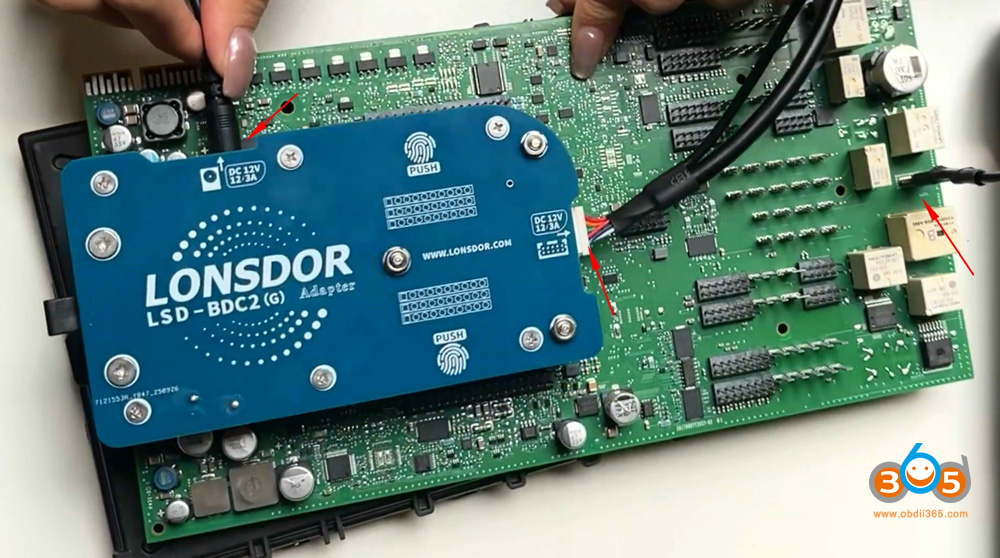
Go to Generate Smart Key function- BMW- G chassis.
Generate Lonsdor G key.
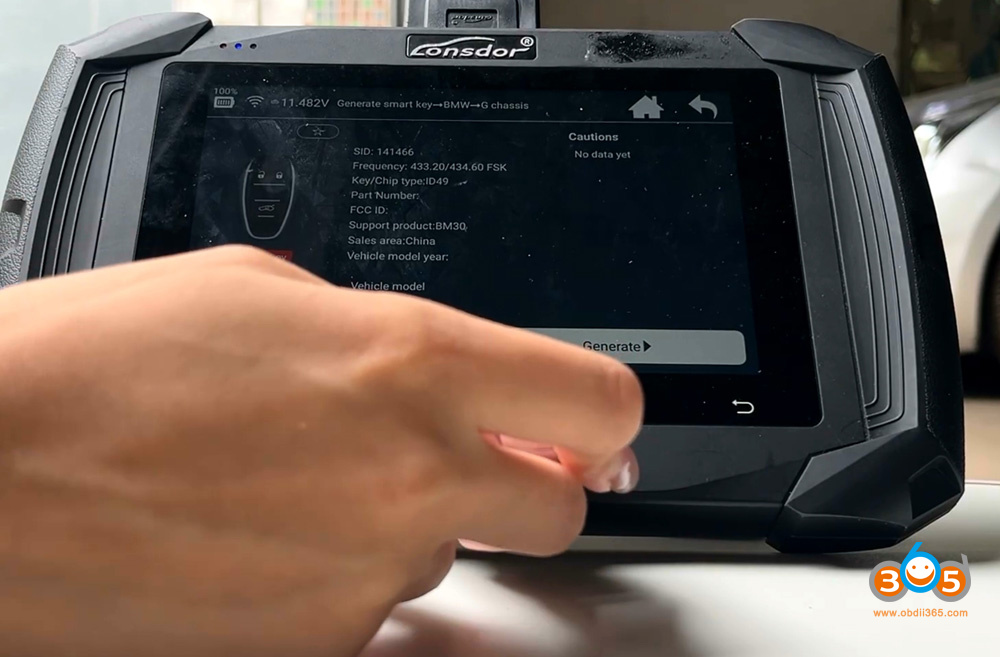
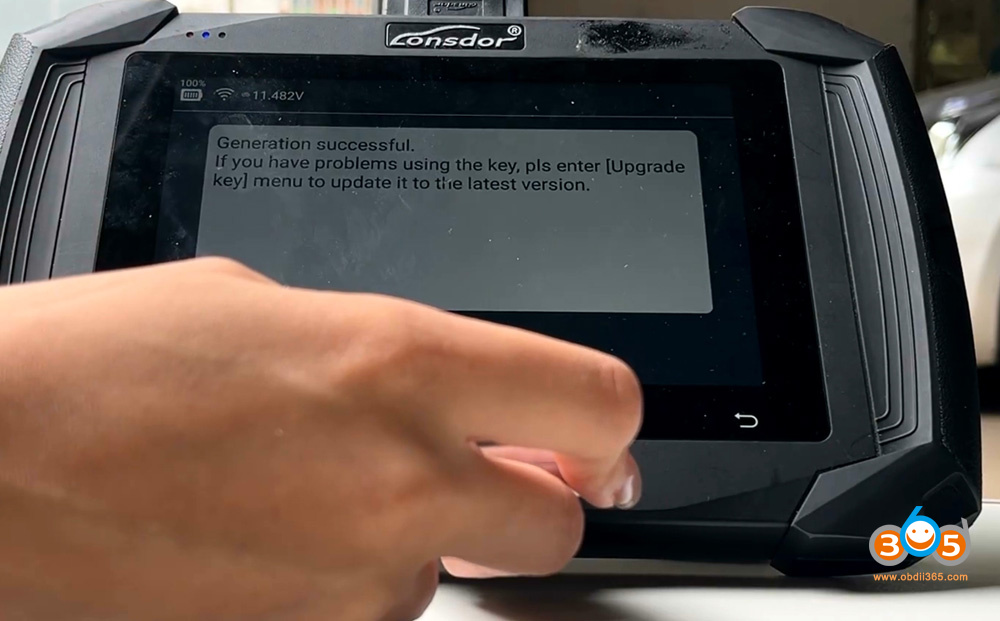
Return the main menu, go to BDC02 function-Program Smart Key
Select Preprocess.
The function requires WiFi network connection.
Make sure you have installed the BDC2 adapter correctly.
Preprocessing in progress.
Preprocessing is complete.
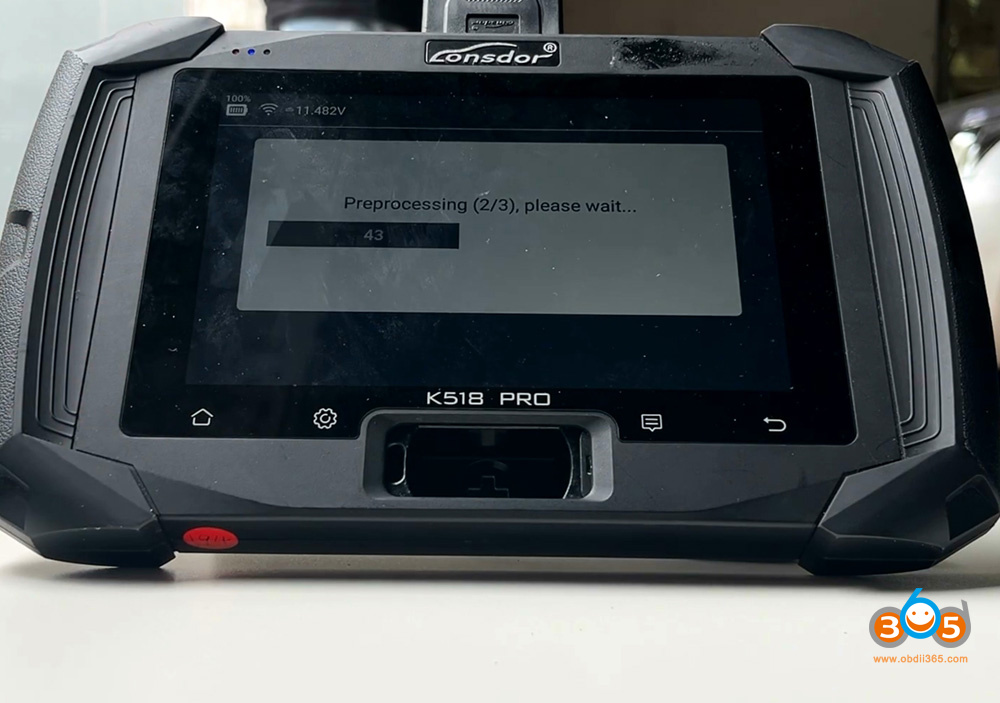
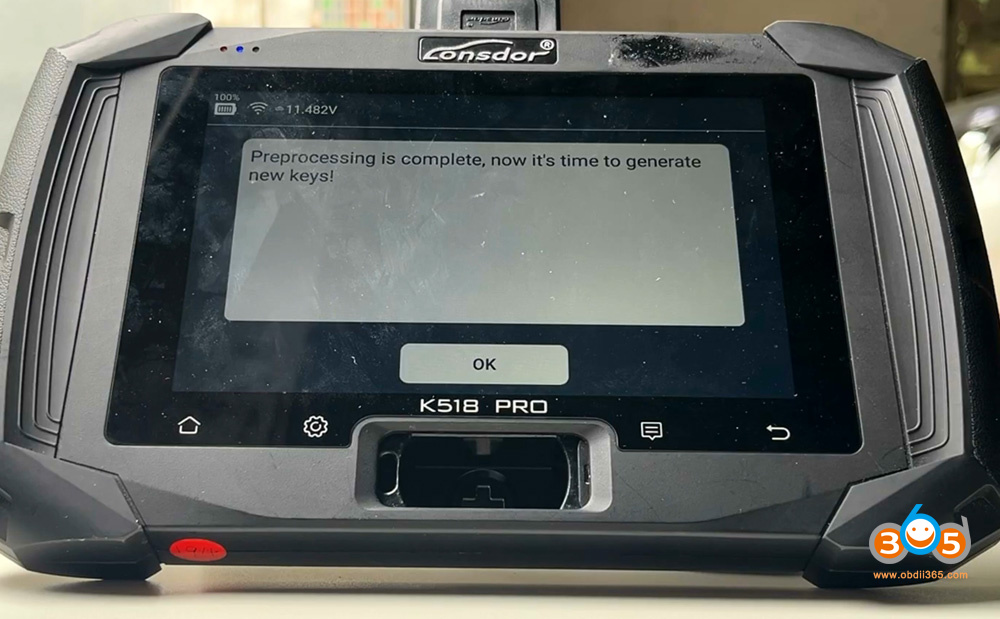
It is time to generate new keys.
Step 4: Add Smart Key
Select Generate working key function.
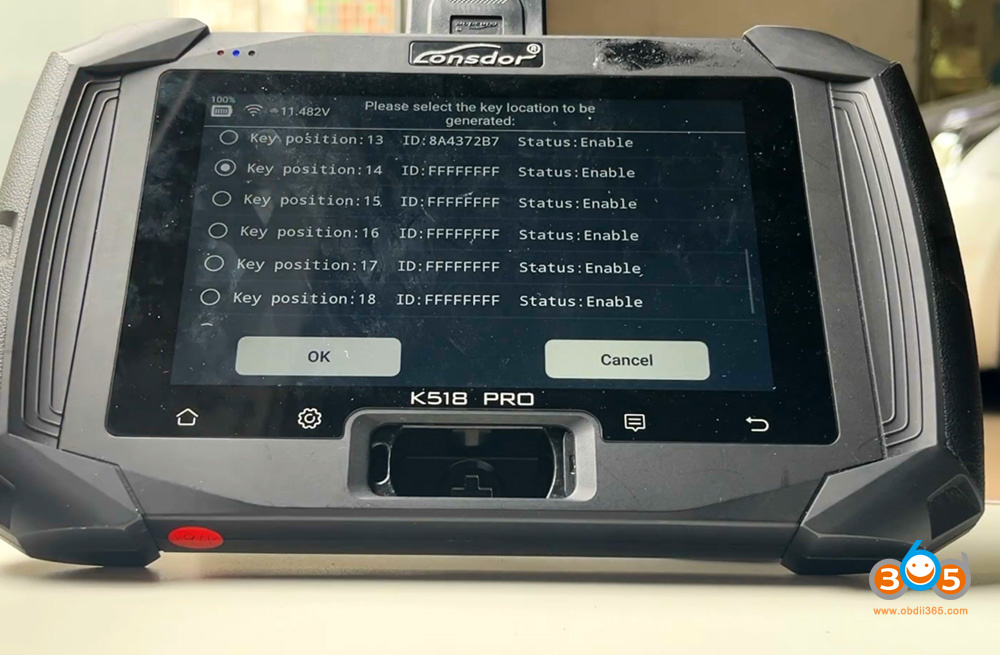
Select a blank key position.
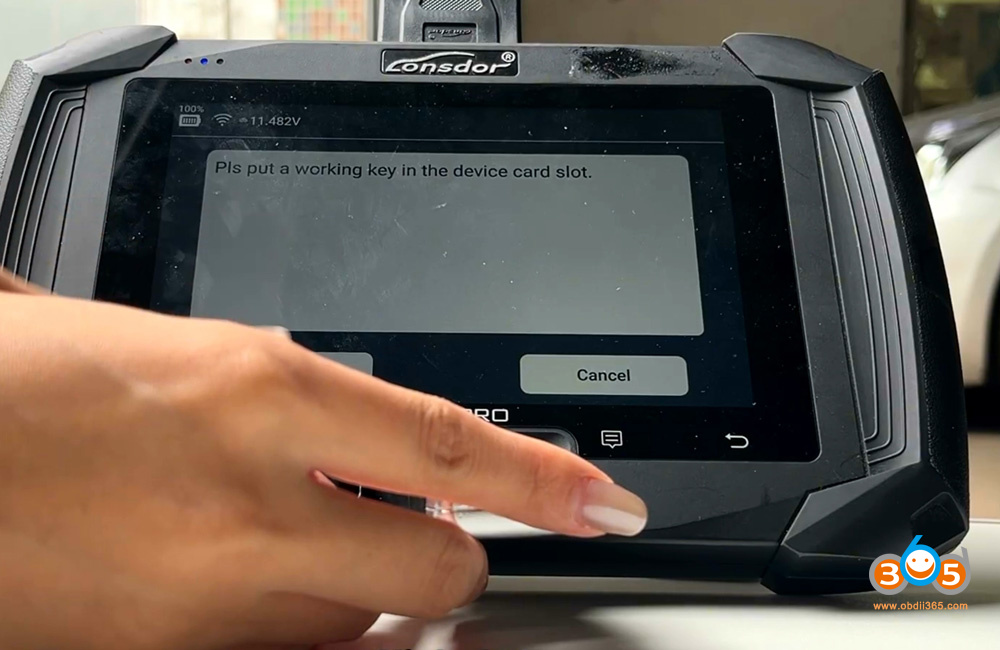
Put a working key into the device card slot.
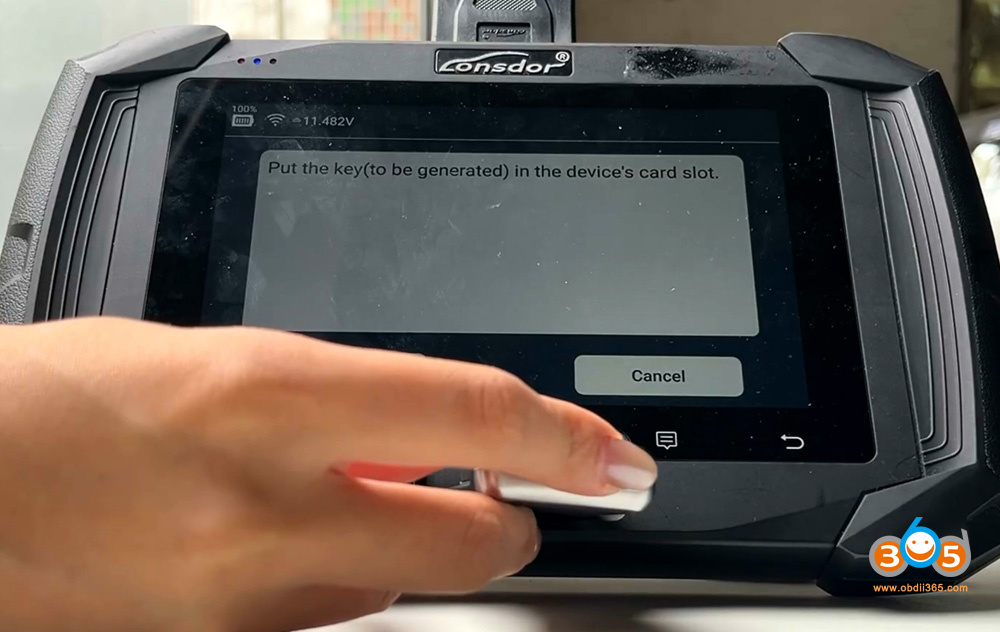
Then take the working key out of the card slot.
Insert the Londsor BMW key we have generated into the device card slot.
Generate new key successfully.
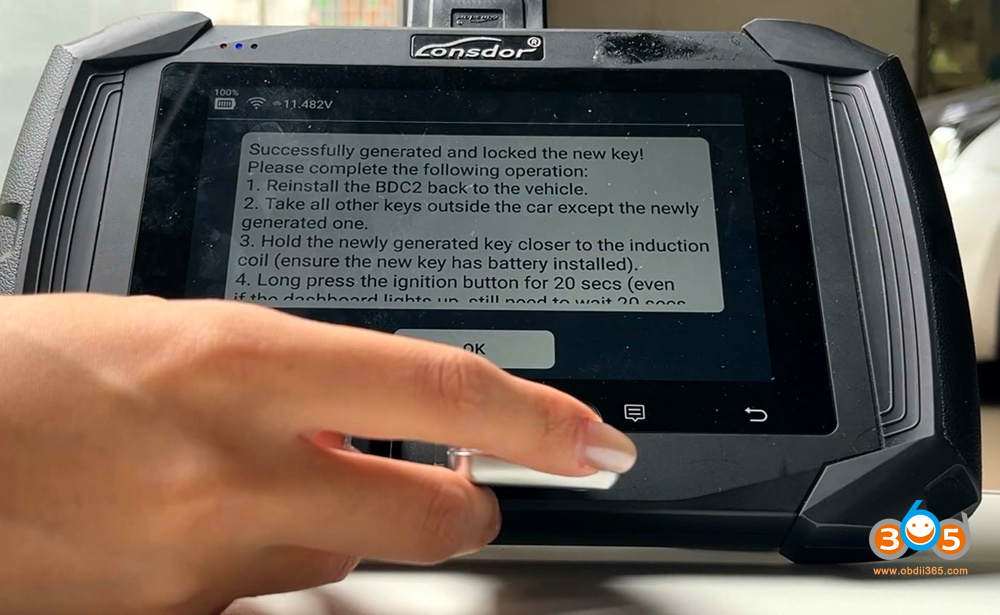
Reinstall the BDC2 module back to vthe ehicle.
Take all other keys outside the car.
Hold the newly generated key close to the induction coil, ensure the new key has battery installed.
Long press the ignition buttion for 20s and test the new keys.
Car starts, remote works.
Video guide:
Related Posts
 Lonsdor K518 VAG MQB49 5C 5D Function FAQs
 Lonsdor K518 Pro Add Audi A6 2017 Keyless Smart Key via OBD
 How to Use Lonsdor K518 with SVG149 Cable for VDO Clusters All Keys Lost?
 Lonsdor K518 Pro 2020 Range Rover Sport Keyless Not Working Solution
 Lonsdor K518 Pro Adds 2013 Citroen Jumper Key
 How to Solve Lonsdor K518 Pro App Permission Expired Error?